
Updated Nov 5, 2026
2 min readActive Workspace tiles: import with the right scope.
Templates, tiles and collections are linked objects. Start with the supported workspace-assignment use case, then check visibility and behavior.
PLM Nexus technical team
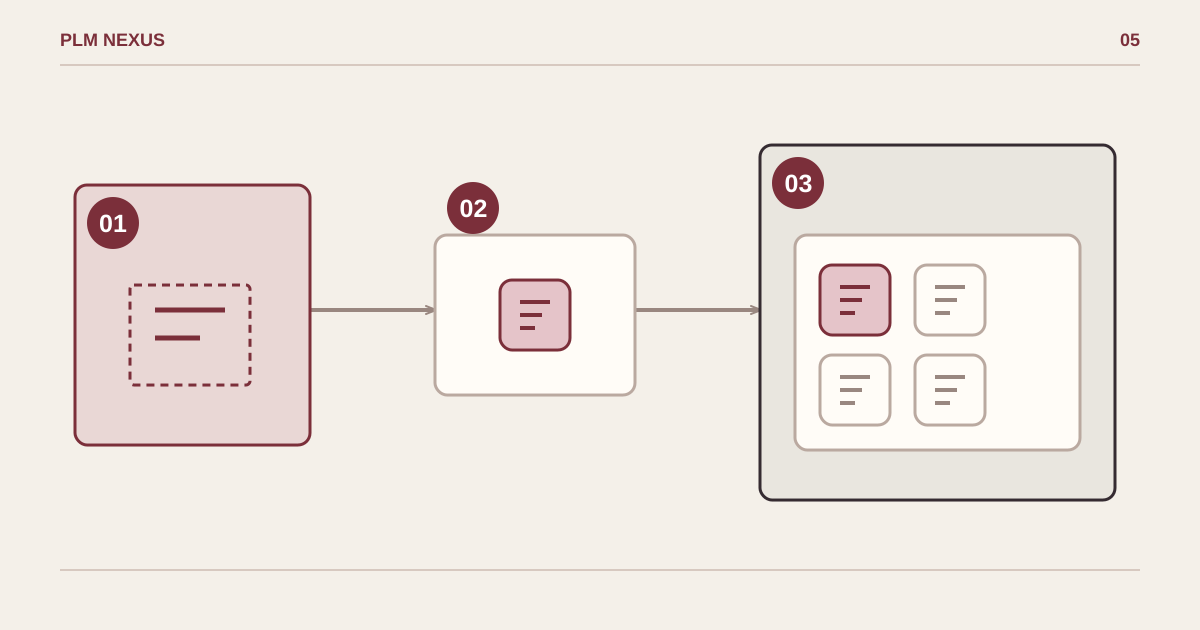
From symptom to verified result
- TemplateDefines the tile layout
- TileAn instance of the template
- WorkspaceContains the assigned collection
A template defines a tile; a collection groups tiles within the assigned workspace.
Conceptual diagram, not a software screenshot.
Recovered from our 2024 technical notes and reviewed against the documentation on 5 November 2026. The commands have not been rerun in Teamcenter for this revision. Check the installed version before use.
Historical environment: Teamcenter 14.1.0.9, Active Workspace 6.1.9, Windows Server 2019. The AWC 6.1 Configuration and Extensibility manual documents aws2_install_tilecollections for assigning a tile collection to a workspace and explicitly limits its supported purpose. This is not a general tile-update recipe.
Check the references before import
A tile references a template; a collection references tiles and a scope. Use unique example identifiers and a real test workspace. The downloaded XML illustrates this structure only: replace the workspace ID and validate the action, icon and identifiers in your installed version.
Download illustrative workspace XML ↓
aws2_install_tilecollections -h

aws2_install_tilecollections -u=ADMIN_USER -p=PASSWORD_PLACEHOLDER -g=dba -mode=add -file="C:\work\workspace-tiles.xml"
The second command is a syntax example, not ready to run: never paste a real password into shared scripts or shell history. Use the authentication method supported by the installed utility. The documented workflow has no export function; preserve source XML and record the existing objects before changing them. Do not assume -mode=update works for every object type.
Verify the result
Sign in with a user in the target workspace and one outside it. Check tile visibility, label and action, then repeat after a new session. An import success message does not prove that the intended audience sees the correct tile.
Next step
If this pattern is showing up in your Teamcenter environment, explore the relevant service or discuss the change you need.